Results 1 to 7 of 7

Thread: Howto: Building Debian Linux server with CCcam

Hybrid View

Previous Post Previous Post   Next Post Next Post
  1. #1
    Standard RSP member
    Join Date
    13 Feb 2007
    Location
    Earth
    Posts
    1,977
    Mentioned
    0 Post(s)
    Rep Power
    84

    Post Howto: Building Debian Linux server with CCcam

    This how-to will cover the basic installation of Debian linux and getting CCcam up and running on it.

    This How-to is still WIP by CC_Share

    --Todo--

    ---------------------------------------

    First download the netinstall cd of debian linux
    You can download it from the following URL:
    Link http://cdimage.debian.org/debian-cd/...86-netinst.iso

    This will install the basic debian linux system on you're harddisk.
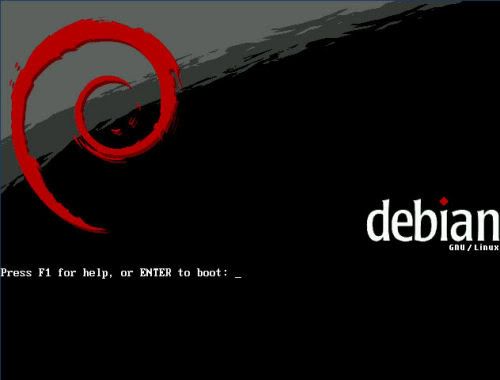
    Boot the computer from the CD you just created.

    Just press enter here to start the installation


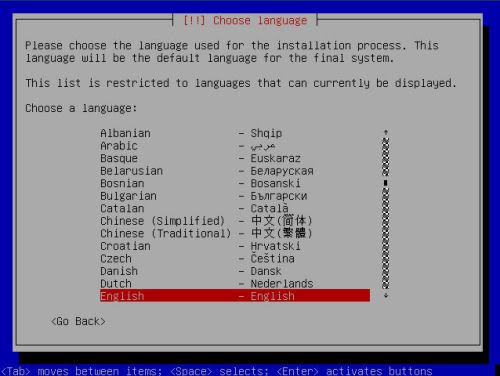
    Select the language you prefer


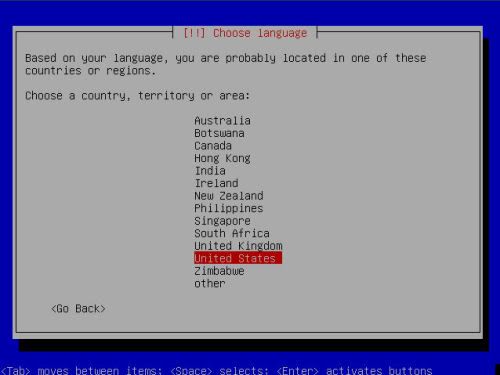
    Select the country you're in. Based on the language it selects a default country


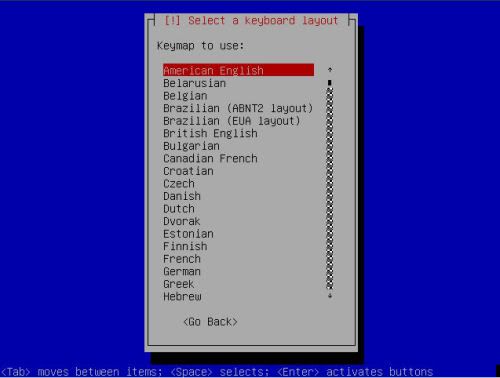
    Here you can choose the keyboard layout. Make sure you select the proper layout otherwise installation might prove to be quite tricky.


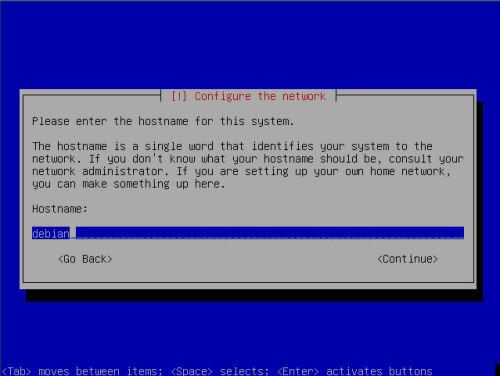
    Set up the hostname of you're server here. I prefer to set up the first part of my DYNDNS account info here.


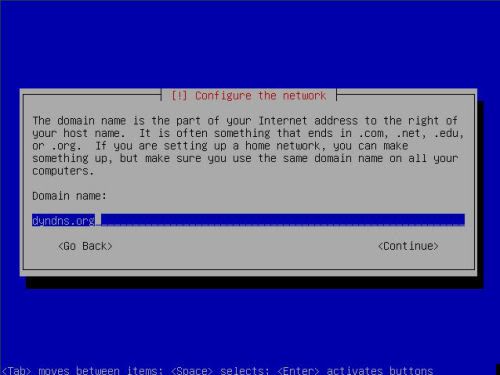
    Here you must enter the domain name. In the example above, you can see i put dyndns.org here


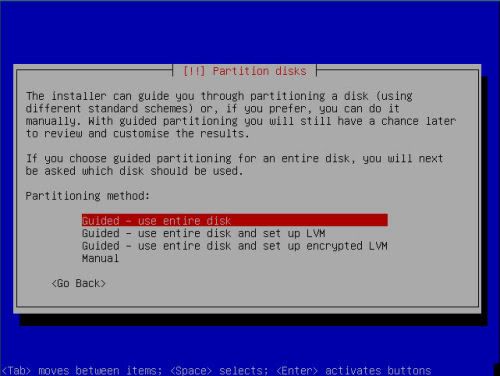
    Next up is the partition guide. Here you must choose
    Quote:
    Guided - Use entire disk


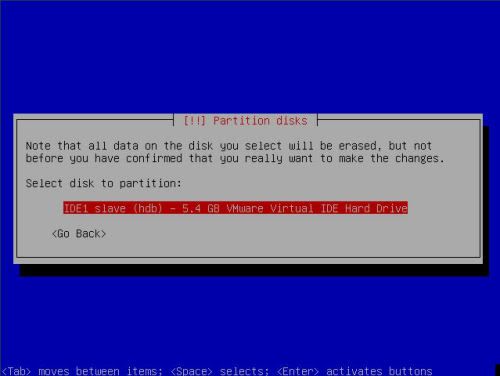
    Select the right harddisk. Usually in a stand-alone server, there will just be one entry
    Don't dream your life - live your DREAMbox ! DON'T FORGET TO SAY '' THANKS '' Note: Viewing Pay TV without a valid subscription is illegal All the files available here are kept for experimental and educational purpose only!

  2. #2
    Standard RSP member
    Join Date
    13 Feb 2007
    Location
    Earth
    Posts
    1,977
    Mentioned
    0 Post(s)
    Rep Power
    84

    Post Re: Howto: Building Debian Linux server with CCcam


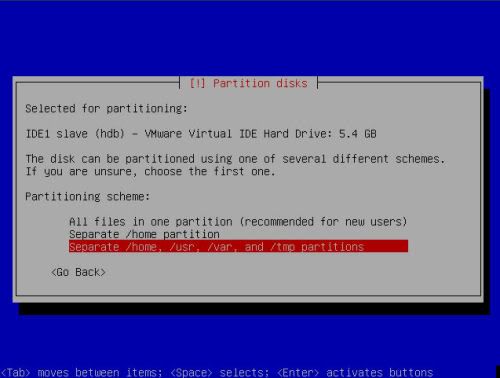
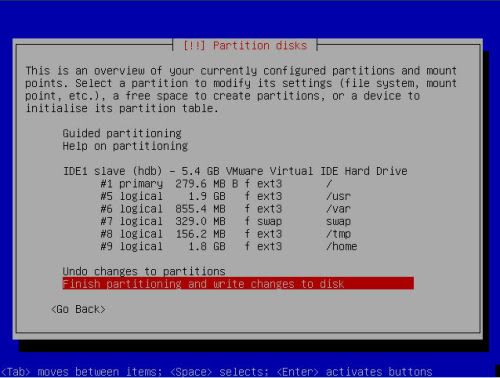
    Debian will let you choose to have everything in 1 partition, or have seperate partitions for the important directory's. One advantage of having seperate partitions, You cannot fill the root system by accident if you upload a lot to the home directory. Linux will NOT boot correct , if the root filesystem is full


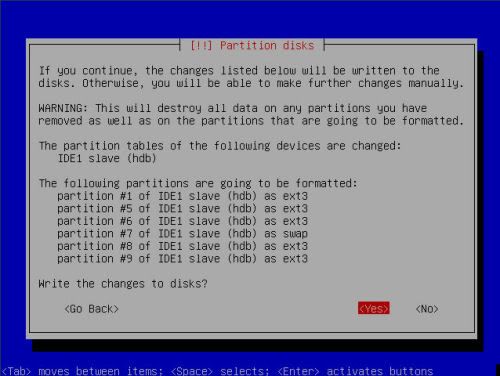
    In the overview, You can check to see if all is set up correct before writing the changes to harddisk. Once you press finish, it will show you the next screen if you are really sure .


    Once you select yes, It will write the changes to harddisk and format all partitions.


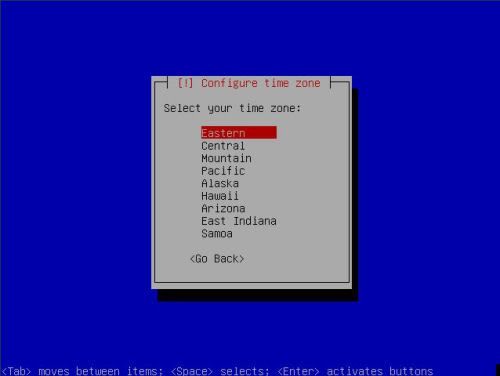
    If Debian cannot guess you're timezone by looking at the bios, it will ask you for the timezone


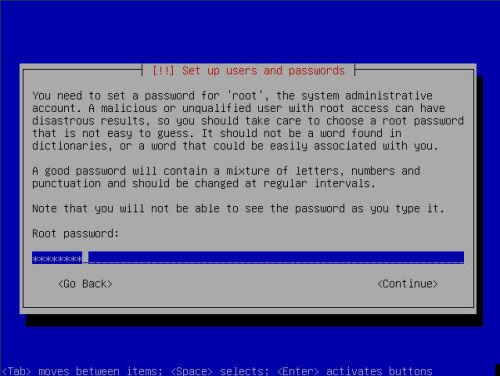
    Next you will have to enter the root password. Do not choose an easy to guess password if you want the server to be reachable from the internet. (if you want to use SSH for example to manage the server from work)


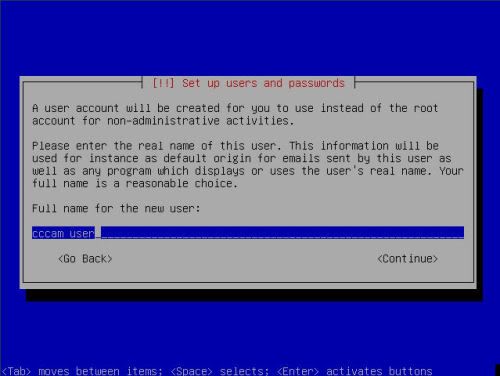
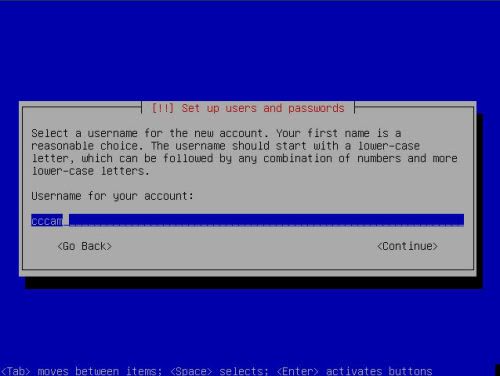
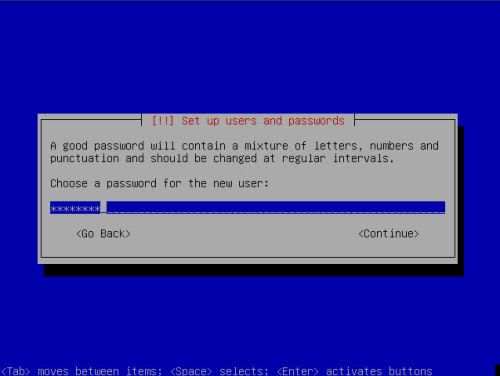
    Next is setting up an account to use for FTP transfer.
    Don't dream your life - live your DREAMbox ! DON'T FORGET TO SAY '' THANKS '' Note: Viewing Pay TV without a valid subscription is illegal All the files available here are kept for experimental and educational purpose only!

  3. #3
    Standard RSP member
    Join Date
    13 Feb 2007
    Location
    Earth
    Posts
    1,977
    Mentioned
    0 Post(s)
    Rep Power
    84

    Post Re: Howto: Building Debian Linux server with CCcam


    Again, do not use a simple to guess password. This account can also be used for SSH


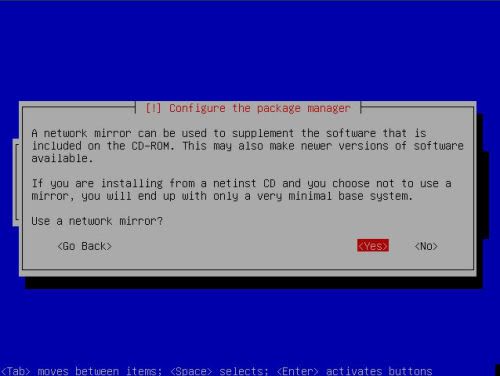
    If you have the option, allways choose a network server.
    Make sure you select a fast and stable one.
    Usually univercity servers prove to be fast and stable


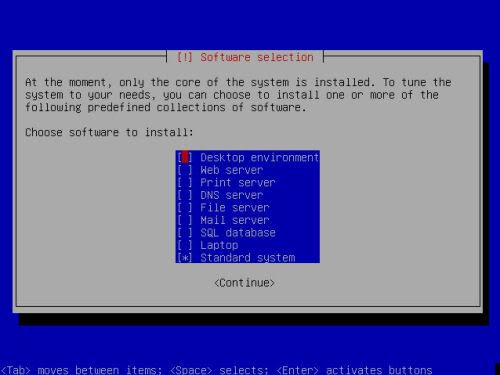
    In the software selection screen, select base system and webserver


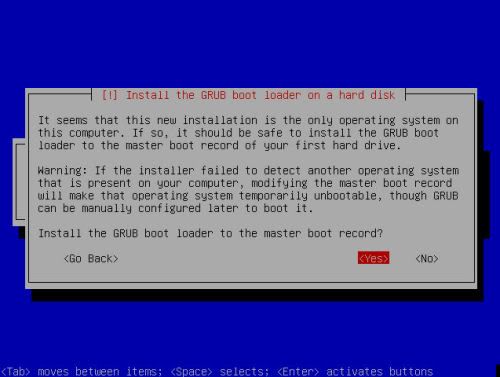
    One of the last things it needs to know, is where to place the grub bootloader. Usually it is safe to place it on the MBR


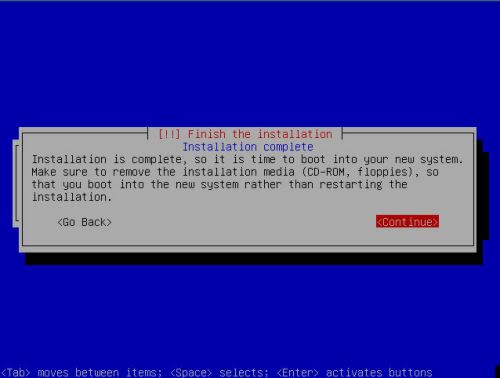
    Congratulations, You just installed a fresh new DEBIAN server.


    As you might have noticed, during installation, debian uses dhcp to aquire an ip adress.
    For a cardserver, it's not recommened to have it's IP adress handled by DHCP.
    First thing we need to do is remove the DHCP and assign a static IP to the linux server

    Assigning static IP
    Log in as root with the right password
    then type in the following command
    Code:
    vim /etc/network/interfaces
    now remove the following line
    Code:
    iface eth0 inet dhcp
    and replace it with
    Code:
    auto eth0
    iface eth0 inet static
    address 192.168.1.225
    netmask 255.255.255.0
    broadcast 192.168.1.255
    gateway 192.168.1.1
    These IP adresses might be different for you're situation.
    Remember to replace them with the numbers you need.
    You can save the file with the following commands
    Code:
    <esc>:wq
    Once the file is saved, you can restart the network and check if you're linux server is running with it's new IP adress
    Code:
    /etc/init.d/networking restart
    ifconfig
    ifconfig should now look something like this
    Quote:
    cardserverBackup:/home# ifconfig
    eth0 Link encap:Ethernet HWaddr 00:00:00:100:70
    inet addr:192.168.1.225 Bcast:192.168.1.255 Mask:255.255.255.0
    inet6 addr: fe80::250:4ff:fe1d:d27b/64 Scope:Link
    UP BROADCAST RUNNING MULTICAST MTU:1500 Metric:1
    RX packets:8931 errors:0 dropped:0 overruns:0 frame:0
    TX packets:6028 errors:0 dropped:0 overruns:0 carrier:0
    collisions:0 txqueuelen:1000
    RX bytes:7585683 (7.2 MiB) TX bytes:916823 (895.3 KiB)
    Interrupt:10 Base address:0x4000
    Installing SSH
    Next thing that needs to be done is install a SSH deamon.
    This will allow you to log into the cardserver from you're own computer and the server does not require a keyboard and monitor if you want to change something.
    Code:
    apt-get install openssh-server
    Once SSH is installed, you can logout of the server,remove the keyboard and monitor as we don't need it anymore.

    Getting Putty
    We need to download putty so we can log in with SSH
    http://the.earth.li/~sgtatham/putty/.../x86/putty.exe

    Remove the CD-ROM drive from the apt-get mirror list:
    To make sure the server does not need the CD-ROM anymore to update or install software, we need to remove it from the mirror list of apt-get.
    Code:
    vim /etc/apt/sources.list
    now remove the lines that point to the CD-ROM drive and save the file.
    Quote:
    deb cdrom:[Debian GNU/Linux 4.0 r0 _Etch_ - Official i386 NETINST Binary-1 20070407-11:29]/ etch contrib main
    Update apt-get software list
    To make sure, you locally have a good software list available, you have to update the apt-get database
    Code:
    apt-get update
    Installing FTP server
    To be able to transfer files between you're computer and the linux server, a FTP server is needed.
    During the installation it will ask you one question,. Answer it with "stand-alone"
    This will consume a bit more memory but will prevent linux from spawning a new process every time you log in.
    Code:
    apt-get install proftpd

    The server is now installed and all the needed files are in place.
    Now it's time to get it ready for CCcam.
    First thing we need to do is make 6 directory's and adjust the parameters.
    Code:
    mkdir /emu
    mkdir /emu/cccam
    mkdir /emu/script
    mkdir /emu/log
    mkdir /var/etc
    mkdir /var/keys
    chmod 777 /emu
    chmod 777 /emu/*
    chown <username> /emu
    chown <username> /emu/*
    The username started above is the username you created during the installation. This name is going to be used for file transfer.

    Startup script for CCcam
    To prevent from having to change directory all the time we're gonna place a script on the server so CCcam can be started from any directory on the server.
    Code:
    vim /emu/script/cccam
    Code:
    #!/bin/sh
    CAMNAME="CCcam Server"
    # end

    # This method starts CCcam
    start_cam ()
    {
    /emu/cccam/CCcam.x86 &
    sleep 2
    }
    # This method stops CCcam
    stop_cam ()
    {
    pkill CCcam.x86
    }
    case "$1" in
    start)
    echo "[SCRIPT] $1: $CAMNAME"
    start_cam
    ;;
    stop)
    echo "[SCRIPT] $1: $CAMNAME"
    stop_cam
    ;;
    restart)
    echo "Restaring $CAMNAME"
    stop_cam
    start_cam
    ;;
    *)
    "$0" stop
    exit 1
    ;;
    esac
    exit 0
    Code:
    chmod 755 /emu/script/cccam
    ln /emu/script/cccam /bin/cccam
    Now you can simply start, stop or restart CCcam from any directory by simply typing
    Code:
    cccam start
    cccam stop
    cccam restart
    Upload CCcam
    Now use a FTP program to upload CCcam.x86 and CCcam.cfg to /emu/cccam

    Making CCcam executable
    Use putty again to give CCcam.x86 execution rights
    Code:
    chmod 755 /emu/cccam/CCcam.x86
    Config update script
    When you're running a big server, restoring connections can take some time then you change you're config file. I like to do my config changes once a day. I use this script to backup the old config and put the new config in place. This is done at 3am so my peers don't notice it and they don't suffer from a freezing picture every time you make a change.
    Code:
    vim /emu/script/configupdate.sh
    Code:
    #!/bin/sh
    #Script to process new config and backup old one.
    #Script designed and written by CC_Share
    SOURCE=/emu/cccam
    TARGET=/var/etc
    FILE=CCcam.cfg
    BACKUPDIR=/var/backup
    CONFIGOLD=CCcam.old
    if test -f $SOURCE/$FILE ; then
    echo "New Config Present"
    if test -d $BACKUPDIR ; then
    if test -f $BACKUPDIR/$CONFIGOLD ; then
    echo "Removing OLD config file from backup directory"
    rm $BACKUPDIR/$CONFIGOLD
    else
    echo "No OLD config to remove."
    fi

    if test -f $BACKUPDIR/$FILE ; then
    echo "Renaming Backup to old config"
    cp $BACKUPDIR/$FILE $BACKUPDIR/$CONFIGOLD
    rm $BACKUPDIR/$FILE
    else
    echo "No Backupfile present yet"
    fi
    if test -f $TARGET/$FILE ; then
    echo "Copying Original config to Backup directory"
    cp $TARGET/$FILE $BACKUPDIR
    rm $TARGET/$FILE
    else
    echo "No Original Config File Present!?!?"
    fi
    else
    echo "Backup directory does not exist."
    echo "making new directory"
    mkdir $BACKUPDIR
    if test -f $TARGET/$FILE ; then
    echo "Copying Original config to Backup directory"
    cp $TARGET/$FILE $BACKUPDIR
    else
    echo "No Original Config File Present!?!?"
    fi
    fi
    echo "Moving New config file to "$TARGET
    cp $SOURCE/$FILE $TARGET
    rm $SOURCE/$FILE
    else
    echo "No New Config present, Nothing to process"
    fi
    exit
    Code:
    chmod 755 /emu/script/configupdate.sh
    Putting configupdate in crontab
    To make sure the config update script will run at 3 am everynight, we can place it in the crontab.
    Code:
    cd /etc
    vim crontab
    and add the following line to it
    Code:
    00 3 * * * root /emu/script/./configupdate.sh >>/emu/log/configupdate.log 2>&1
    This will run the script every day at 3am, and it's output will be writen in /emu/log/configupdate.log so you can check on occasion if all went well.

    Putting CCcam in bootsequence

    There's only one more thing to do. Add CCcam to the startup so it will start on the next reboot.
    Code:
    vim /etc/rc.local
    and add the following line at the bottom
    Code:
    /bin/cccam start &
    test the config update script created earlier to see if that works
    Code:
    /emu/script/./configupdate.sh
    If it works, you can reboot the server and check if CCcam is running.

    Good luck
    Don't dream your life - live your DREAMbox ! DON'T FORGET TO SAY '' THANKS '' Note: Viewing Pay TV without a valid subscription is illegal All the files available here are kept for experimental and educational purpose only!

  4. #4
    Standard RSP member
    Join Date
    13 Feb 2007
    Location
    Earth
    Posts
    1,977
    Mentioned
    0 Post(s)
    Rep Power
    84

    Post Re: Howto: Building Debian Linux server with CCcam

    Run Second CCcam Server on Same Debian linux PC

    ''
    Here is little tutorial to run second CCcam server on same Debian Linux PC.


    • Rename CCcam.x86 to CCcam1
    • Ftp the CCcam1 file to /usr/local/bin
    • Change the file attributes to 755 by command

    chmod 755 /usr/local/bin/CCcam1

    • Rename the second CCcam.cfg flie to CCcam1.cfg
    • Change WEBINFO LISTEN PORT to 16002 port as you might have 16001 for the first CCcam.cfg
    • Ftp the CCcam1cfg file to var/etc
    • Give command to start the second cam:

    CCcam1 -C var/etc/CCcam1.cfg &

    Dont forget to forward port!! Make sure both ports are different!

    To check if all working
    http://IP:16002/
    You are ready to go!

    ps: every time you reboot you PC you need to manually start the second cam by the command above. ''
    Don't dream your life - live your DREAMbox ! DON'T FORGET TO SAY '' THANKS '' Note: Viewing Pay TV without a valid subscription is illegal All the files available here are kept for experimental and educational purpose only!

  5. #5
    Member Visitor
    Join Date
    21 May 2010
    Posts
    1
    Mentioned
    0 Post(s)
    Rep Power
    0

    Default Help Please

    Thank you about this subject ,
    I have Question . Iam useing CCcam Server on linux, So What about Cardserver.cfg does i need to make any changes in it ? your help please .
    Last edited by delta2k2; 11-06-13 at 16:55. Reason: R12

  6. #6
    Member Visitor
    Join Date
    11 Jun 2013
    Posts
    3
    Mentioned
    0 Post(s)
    Rep Power
    0

    Default

    Hello master,
    I wanna build a server.
    I wanna share my paytv to my friends via internet, so
    Is this the thing that i should do?/ install debian?
    Thanks be4

    Sent from my GT-S5660 using Tapatalk 2

  7. #7
    Standard RSP member
    Join Date
    30 Apr 2013
    Posts
    53
    Mentioned
    0 Post(s)
    Rep Power
    47

    Default

    Why don't you go ahead and follow the steps explained in ths thread?

Posting Permissions

  • You may not post new threads
  • You may not post replies
  • You may not post attachments
  • You may not edit your posts
  •